Upgrade to Microsoft's Windows 11 Today!
Microsoft recently announced that they are retiring Windows 10, and Microsoft is requiring all users to upgrade to Windows 11. If your device is currently running Microsoft's Windows 10 operating system, we encourage you upgrade to Windows 11 now! Windows 11 provides:
- Enhanced Security: Windows 11 includes the latest security features to better protect your data.
- Improved Performance: Faster startup times and better overall responsiveness.
- New Features: Redesigned user interface, improved multitasking, and new productivity tools.
- Future Compatibility: Windows 11 will be supported with updates for years to come.
How to upgrade to Windows 11:
University-Issued Devices
Personal Devices
- Installing Windows 11 on your current PC: If your PC meets the minimum system requirements for Windows 11 and is eligible to upgrade directly to Windows 11, you might have already received a notification about upgrading. To check if your PC is eligible for the free upgrade go to Start > Settings > Update & Security > Windows Update and select Check for updates.
- New PC with Windows 11: If your PC is not eligible, or if you want a new PC with Windows 11 pre-installed, you might want to start by exploring the latest Windows 11 PCs. This tool will help you find the right PC based on your unique needs.
How to prepare to upgrade your Windows device(s):
Whether you have a University-issued or personal device, please ensure your data is safely backed up prior to the upgrade to Windows 11. You can do this by taking the following steps:
University-Issued Devices
- Using OneDrive: Upload your files and folders to OneDrive (onedrive.miami.edu). If you are running a sync, to check, open OneDrive from the taskbar and verify your files are up to date.
- Using Box: Upload your files and folders to Box (box.miami.edu). If needed, ensure they are synced and accessible. Confirm that your files are synchronized by opening Box and checking recent activity.
Personal Devices
- For personal computers, save your data to a cloud storage solution of your choice.
Information for UM Community Members with University-Issued Devices:
An upgrade to Microsoft's latest operating system, Windows 11, is required to ensure the safety and integrity of our systems. To that end, the University's IT department will push the upgrade to University-issued devices in a phased approach. IT will ensure the upgrade is pushed to all University-issued devices.
What does this mean for me?
- Important: Ensure you save and backup all the data on your device prior to the upgrade to Windows 11.
- When the option to update your device appears, select Restart Now or Postpone. If you postpone, your computer will automatically restart and apply the update in 12 hours.
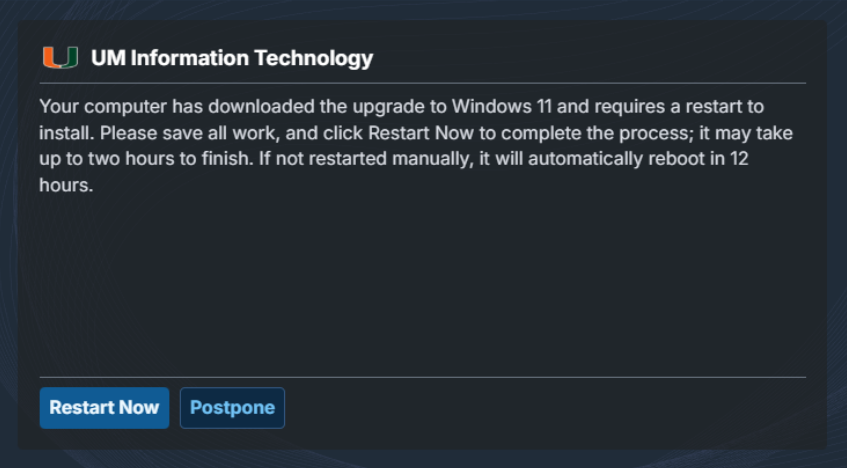
Alternatively, if you prefer to upgrade to Windows 11 at your convenience, you can complete the upgrade through the Self Service Portal app on your Windows device. A step-by-step tip sheet has been created to guide you in the upgrade process via the Self Service Portal app.
If you have any questions, or for 24/7 technical support, please contact the IT Service Desk.